
Your MLS Questionnaire is the form that tells the MLS — and every syndicated site like Zillow and Realtor.com — what to publish about your home. Until it’s complete, your listing cannot go live. (Curious about how the MLS actually works behind the scenes? See Flat Fee MLS Process: How Does the MLS Work?)
This guide walks through every step of the questionnaire so you can fill it out in one sitting. The questionnaire is organized into 8 steps, and most sellers finish in 30–45 minutes if they have their documents ready. You’ll see an estimated time remaining at the top of each step.
Before you start: what to have on hand
Gather these items before you begin. Having them ready is the single biggest time-saver:
- A government-issued ID (driver’s license or passport) — or your property deed, tax sheet, or title statement
- IDs and email addresses for every co-owner on the deed — spouse, business partner, or anyone else listed. All co-owners must sign the listing agreement.
- Your most recent property tax bill — for the parcel/folio number, tax amount, and year built
- Your home insurance policy — for the flood zone code (this field also auto-populates in most cases)
- At least 3 photos of your property (1 if you’re listing land), starting with the exterior front of the home
- Your HOA contact info and fees, if applicable
- Entity documents, if you’re selling through an LLC, Trust, Corp, or as an authorized representative (see signature scenarios below)
How to access the questionnaire
Log in to your Beycome dashboard using your own credentials. For security reasons, only the account owner can submit or update MLS information. (For a general walkthrough of what you can access and change from your dashboard, see How to Update & Make Changes.)
From the main menu, select Listings and click into the property you’re listing. Look for the red banner that reads “MLS questionnaire missing. Click here.”
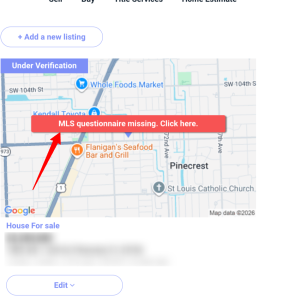
Clicking the banner opens the 8-step questionnaire.
Step 1: General, Legal & Tax (~7 min)
This is the longest section. You’ll confirm who you are, prove you own the home, and provide the basic property and tax details.
Owner information:
- Your Full Name — the name of the person using the Beycome account. A company or trust name can be added later.
- Legal Owner Name (as written on the property deed) — must match your deed exactly, including middle initials and suffixes like “Jr.” If it doesn’t match county records, the listing will be blocked and documents will have to be re-signed.
- Signing on behalf of a Trust, LLC, Corp, LP, or with Authority to Sell — select the option that best describes your role. This changes which signature documents are generated, and you’ll need to upload additional entity documents. See signature scenarios below for the full breakdown.
- Is there a second owner? — if anyone else is on the deed (spouse, co-owner, business partner), their full name, email, and ID are required. Every owner listed on the deed must sign the listing agreement before the listing can go live. There are no exceptions — the MLS requires all owners to authorize the listing.
- Is the owner occupying the property? and ownership duration — standard yes/no questions that affect some disclosures.
Property details:
- Parcel ID / Folio # — the number your county uses to identify the property. Find it on your tax bill or your county property appraiser’s website (Miami-Dade: miamidade.gov/pa · Broward: bcpa.net · Palm Beach: pbcgov.com/papa) or using beycome folio map. The address and parcel number must match county records, or the listing will be held as incomplete.
- Additional Parcel — yes only if your property spans multiple parcel numbers.
- Unit Number and Unit Detached — for condos, townhouses, and multi-family units.
- Occupancy Information — whether the property is owner-occupied, tenant-occupied, or vacant.
- Property Style — townhouse, single-family, condo, villa, etc.
- Year Built and New Construction Y/N — from your tax bill or county records.
- Property Condition — be accurate. This appears on the MLS and shapes what buyers expect when they walk in.
Tax information:
- Tax Amount and Tax Year — from your most recent tax bill. Numbers only, no dollar sign or commas.
- Flood Zone Code — required for every MLS listing, but this field usually auto-populates. If it doesn’t, it’s printed on your home insurance policy or you can look it up at msc.fema.gov. If unknown, the default is X (minimal risk). Quick reference: X = minimal risk · AE/AH = moderate-to-high (flood insurance usually required) · VE = high-risk coastal.
⚠️ A note on address changes: once you’ve submitted the questionnaire, changing the address will reopen the entire questionnaire and you’ll need to re-sign all documents. In some cases an address change also forces a listing in a different MLS — starting with the correct address saves significant time.
Step 2: Financial (~5 min)
This step covers your asking price, what financing you’ll accept, and your public-facing listing description.
- List Price — enter numbers only, no dollar sign or commas (e.g.,
700000). Price changes after your listing is live require a separate request — see Modify your Price, Financial Terms and Commission or Update your Property Price. - Financing Available — the more types you accept, the larger your buyer pool. At minimum, we recommend Cash + Conventional. Accepting FHA and VA opens the listing to a large additional share of buyers. (Not sure what these loan types mean? See our guides to conventional loans, FHA loans, and VA loans.)
Public Remarks — what you can and can’t write
Public Remarks are the property description buyers read on Zillow, the MLS, and every syndicated site. Aim for 150–300 words describing upgrades, location highlights, and what makes the home special.
Hard rules — violating these will get your listing rejected or fined:
- English only
- No contact info — no phone numbers, email addresses, URLs, or websites. This applies because Beycome is listed as the main MLS contact per MLS policy. Read Does My Contact Info Appear on MLS, Showings & syndicated websites?
- No commission, compensation, concession, or bonus language — new NAR rules prohibit mentioning commissions in any MLS field. If a buyer’s agent wants compensation, they can request a separate Compensation Agreement (available as a template in your dashboard).
- No showing instructions or driving directions — those go in their dedicated fields.
- No discriminatory language — the Fair Housing Act prohibits preferences based on race, religion, family status, disability, etc. Phrases like “perfect for young professionals” violate this.
- No “GPS” references — even something like “SEE GPS” in directions triggers an MLS fine. The term is copyrighted.
- Forbidden words — common triggers that get listings flagged: perfect for, ideal for, FSBO, realtors welcome, independent living, seasonal worker, safest, offer, agreement, settlement, commission, short-term, vacation.
Driving Directions
Step-by-step directions from a recognizable landmark or intersection, the kind you’d give someone who’s never been to the property. Don’t use “GPS” anywhere in this field.
Step 3: Media / Photos (~5 min)
Photos drive showings. The MLS requires a minimum of 3 photos for residential properties (1 for land, 6 for HAR in Houston). Competitive listings usually have 15–25 photos. There’s no maximum, but most MLSs and portals only display the first 25–100.
The first photo rule: your primary photo must be a front exterior, aerial photo, rendering, or water view of the home. A swimming pool does not qualify as a water view.
Photo requirements:
- Minimum resolution: 640×480px, max 32MB per photo
- Recommended: 1600×1200px at 72dpi JPEG
- Virtually staged photos — if any photos were digitally altered (furniture added, sky changed, grass re-colored), check the “Please check if one or more photos are virtually staged” box at the bottom. The MLS requires this to be disclosed. When in doubt, check the box.
- Forbidden: yard signs, watermarks, brand logos, faces, explicit content, political content, street view screenshots, or anything offensive
You can reorder and replace photos at any time, even after the listing is live. See How to Add, Remove, or Modify the Order of Your Listing Photos.
Video and virtual tours: most MLSs allow YouTube, Vimeo, or 3D tour URLs — but they must be unbranded (no logo, no contact info, no agent photo, no QR code, no links). A dedicated property website counts as your virtual tour and must also be unbranded. See how to add a YouTube or Vimeo video.
Step 4: Interior (~6 min)
This step covers the inside of your home — room counts, square footage, appliances, features, and interior finishes.
Key fields:
- Total Bedrooms, Full Baths, Half Baths — Full bath = shower or tub + toilet + sink. Half bath = toilet + sink only (a powder room).
- Living Area (SqFt) — the heated and air-conditioned interior only. Basement square footage and any sub-elevation space cannot be claimed as living area. If you’re not sure of the number, use the figure from your county property appraiser. (You can update beds, baths, sqft, and lot size later if needed.)
- Bedroom Description — e.g., “At Least 1 Bedroom Ground Level, Entry Level,” “Primary Bath Shower,” etc.
- Total Floors in Building and Unit Floor Location — for condos and townhomes.
- Appliances Included — multi-select everything that stays with the home (refrigerator, dishwasher, washer, dryer, range, etc.).
- Interior Features — take your time and select everything that applies (kitchen island, walk-in closet, impact windows, vaulted ceilings, etc.). More features = more buyer interest.
- Furnished — furnished, unfurnished, partially furnished, or negotiable.
- Unit View and Unit Design — garden view, water view, etc. / corner unit, interior unit, etc.
- Flooring Description — tile, hardwood, laminate, carpet, marble, etc.
- Heating Description and Cooling — type of heating/AC system. At least one cooling option is required.
Step 5: Room Details (~2 min)
For each main room, enter the Room Type (dropdown) and Room Dimensions in feet (e.g., 12x12). At minimum, include your Living Room, Kitchen, Primary Bedroom, and Primary Bathroom.
Step 6: Exterior (~3 min)
This step covers the outside of your home — exterior features, security, waterfront, parking, and construction.
Key fields:
- Exterior Features — multi-select (fence, patio, balcony, deck, etc.).
- Security Information — guard at site, gated community, security system, etc.
- Waterfront Y/N — if yes, a follow-up field will ask for the type (ocean, canal, lake, river, bay, intracoastal).
- Garage Y/N — if yes, you’ll be asked for the number of spaces.
- Parking Description — multi-select (2+ spaces, guest parking, open space, covered, etc.).
- Construction Type — in South Florida, most homes are CBS (Concrete Block Structure). Newer builds often use Pre-Cast.
Step 7: Community & Restriction (~3 min)
This step covers HOA / condo association details, community rules, and pet/leasing restrictions.
Community fields:
- Complex Name — the name of your condo or community.
- Association Type — HOA, condo association, co-op, or other.
- Association Fee and Fee Frequency — monthly, quarterly, or annual amount.
- Application Fee — what buyers pay the HOA to apply.
- Approval Information — how long HOA approval typically takes (e.g., “1–2 Weeks Approval”).
- Membership Purchase Required — whether buyers must purchase a club or amenity membership.
- Maintenance Includes — multi-select what your HOA fees cover (common area, recreation facilities, water, insurance, etc.).
- Governing Bodies — condominium, HOA, co-op board, etc.
Restrictions and special categories:
- Restrictions — e.g., “Ok To Lease,” “No Trucks,” “No Short-Term Rentals,” etc.
- HOPA — select yes if your community is a 55+ age-restricted community under the Housing for Older Persons Act.
- Pets Allowed — HOA rule about whether pets are permitted in the community.
- Leasing Restriction — minimum lease term, rental caps, or waiting periods before a new owner can rent.
💡 CDD Fee note: If your property has a Community Development District fee (common in newer Florida master-planned communities), this is where you’ll disclose it. CDD fees fund infrastructure like roads, utilities, and amenities and appear as a separate line on your tax bill. Buyers will see this on the MLS.
Step 8: Agreement (~2 min)
The final step is the Beycome Listing Agreement and any required Affiliated Business Arrangement Disclosure Statement — both are pre-filled with everything you entered in the previous steps (seller name, property address, list price, tax ID, phone, and email).
To sign, click the orange Sign button next to each document and follow the electronic signature prompts. If you have co-owners, each one receives their own signature request by email. The listing will not move forward until every owner has signed every document.
The agreement becomes effective the same day your listing is entered into the MLS. You can view signed copies anytime from this screen or from your dashboard under MLS Agreement.
A few things to know about the agreement
- Listing type: Beycome agreements are Exclusive Right to Sell in most states, meaning no other brokerage can represent the property during the term. Exceptions: California and North Carolina use Open listings, where others can also list.
- Term: Agreements run for 24 months on newer contracts (36 months on older ones). You can cancel at any time with no fees or conditions (Georgia has a $25 cancellation fee). Some MLSs require a few days to release the listing to another broker.
- Expiration: one week before your agreement expires, we’ll notify you. To extend, you’ll need to sign a new agreement — we cannot legally represent you once the agreement expires.
What happens after you sign
Once your questionnaire is submitted and all signatures are in, our MLS team reviews the information and activates your listing. Standard turnaround is within 2 business days once everything is complete and accurate — most listings go live faster. The listing does not go live instantly — it has to pass our review first, then be pushed to the MLS, which then syndicates to Zillow, Realtor.com, and the other major sites. For more on where your listing ends up, see Where is my listing advertised?.
The most common reasons a listing gets delayed:
- Legal owner name doesn’t match county records
- Missing signature from a co-owner
- Missing ownership proof or entity documents (LLC operating agreement, trust certificate, etc.)
- Parcel number doesn’t match the address
- Incomplete or incorrect disclosures
If there’s an issue, we’ll add a note to your dashboard explaining what’s needed — you can fix it directly from your dashboard and the listing resumes processing automatically.
Once your listing is live, you can view your Flat Fee MLS listing to confirm everything looks right.
After your listing is live
Here are the most common next steps once your home is on the MLS:
- Schedule open houses — how to set up an open house
- Add or change photos — modify your listing photos
- Update price or commission — modify your price, financial terms, and commission
- Add a video tour — add a YouTube or Vimeo video
- Upload documents to your dashboard — how to add documents
- Upgrade your package — add-ons and a la carte upgrades
- Pause your listing — temporarily take your listing off market. Off-Market is limited to 14 days on most MLSs (up to 30 on some). Beyond that, the listing may be automatically restored to Active, Withdrawn, or subject to a fine.
- You’re under contract — update your listing status
- Cancel your listing — how to cancel or delete a listing
Important security notice
For security reasons, Beycome only accepts listing updates submitted through your Beycome account. We cannot process changes requested by email, SMS, or phone call. This policy ensures that only you can control updates to your listing and protects your property information.